Portrait vs Landscape Printing: Key Differences and When to Use Each
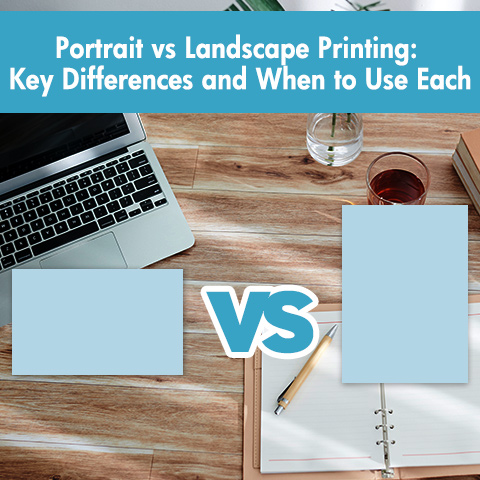
If you’re new to printing documents, photos, or designs, you’ve probably seen the terms “portrait” and “landscape” in your printer settings or software. These aren’t just fancy words; they refer to the orientation of the page, and choosing the correct orientation has a significant impact on the final print quality and functionality.
In this blog, we’ll explain the meaning of portrait vs landscape printing, their main differences, and their respective applications. We’ll also demystify “flip on long edge” and “flip on short edge” in duplex printing. After reading this guide, you’ll be able to confidently print professional-quality documents every time.
What Is Page Orientation?
Page orientation describes how a rectangular page is oriented for viewing or printing:
Portrait orientation means the page is taller than it is wide. Think of a typical school essay or a novel page.
Landscape orientation means the page is wider than it is tall. Picture a widescreen TV or a panoramic photo.
The names come from art: portrait paintings often emphasize height (like a person standing), while landscape paintings capture wide scenes (like a horizon).
Portrait vs Landscape Printing: What’s the Difference?
Let’s explore their key differences in detail to understand why these differences are important for your printing projects.
| Feature | Portrait Orientation | Landscape Orientation |
| Dimensions | Height > Width | Width > Height |
| Common Use | Documents, letters, books, resumes | Spreadsheets, charts, panoramas, slides |
| Focus | Vertical flow, sequential reading | Horizontal layout, comparative view |
| Printer Paper Feed | Usually fed short-edge first | Usually fed long-edge first (check printer settings) |
| Default in Most Apps | Yes (e.g., Word, Google Docs) | No (usually selected manually) |
1. Direction and Dimension
The biggest difference between portrait and landscape printing lies in their geometry. Portrait layout makes the page’s vertical (height) greater than its horizontal (width), creating a natural vertical canvas. Conversely, landscape layout reverses this relationship, making the horizontal (width) greater than the height.
2. Different Visual Effects
The direction you choose directly guides the reader’s eye. Portrait orientation establishes a strong vertical visual flow. The eye naturally moves from top to bottom, which is ideal for reading text. Landscape orientation promotes horizontal visual scanning, which is ideal for comparing things side by side or appreciating wide-format images.
3. Applicable Uses for Different Content
This is the most practical difference between portrait and landscape printing. Portrait mode is suitable for narrative and formal structures, and is the standard format for documents primarily intended for reading. Landscape mode is suitable for visual contrast and panoramic displays, providing the necessary platform for data (charts, timelines) or wide-format images that need to be viewed simultaneously.
4. Different Printer Paper Handling
The way paper moves in a printer usually changes depending on the printing orientation. For standard printers, portrait printing typically involves the short side starting first. When printing landscape documents, the long side usually starts first. Therefore, checking software settings and paper placement is crucial to avoid paper jams.
5. Different Print Settings
In most word processing software, portrait mode is the automatic default setting. Landscape mode almost always needs to be manually selected. You must actively select landscape mode, which signifies a change from a standard document to a special document.
When to Use Portrait Orientation?
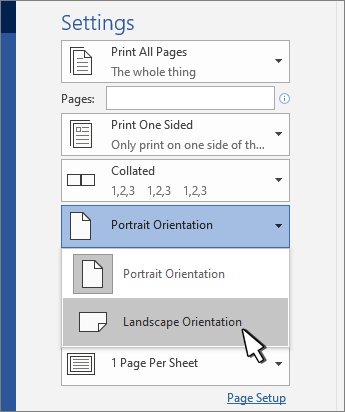
For documents whose primary purpose is reading text or presenting information in a formal, sequential manner, portrait orientation is the default and recommended choice. Therefore, if your content is designed for top-to-bottom reading, such as stories, lists, or formal letters, choose portrait mode. Portrait orientation is suitable for:
- Text-Dominant Documents:: including papers, reports, business letters, resumes, novels, and manuals. It aligns with our natural top-to-bottom reading habits, making reading large blocks of text easier and faster.
- Portrait Photos & Artwork: ideal for printing personal portraits, full-body photos, headshots, and any artwork designed with a vertical composition, such as posters or digital artwork for vertical displays.
- Formal & Administrative Paperwork: the standard format for legal documents, contracts, official certificates, and most government or application forms, as it embodies formality and tradition.
- Booklets, Pamphlets & Flyers: when documents are designed to fold or be bound along the left, portrait pages create a natural and intuitive reading experience, much like reading a book.
When to Use Landscape Orientation?
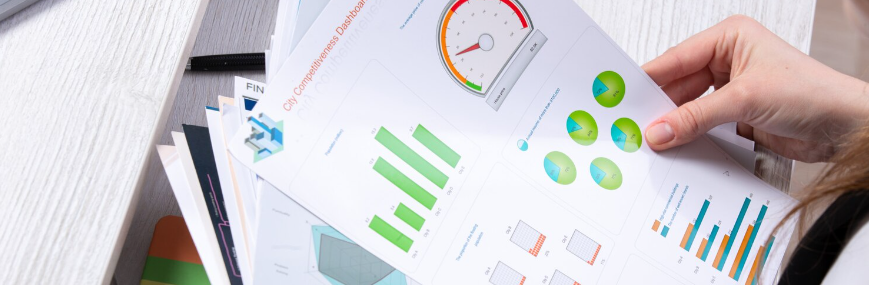
When your content requires more display space, you need landscape mode to facilitate comparisons, showcase richer visuals, or display side-by-side layouts. Therefore, if your content is best viewed from left to right, such as comparing data, wide images, or any layout where elements are arranged side by side, please select landscape mode. Landscape mode is especially suitable for:
- Spreadsheets, Data Tables & Financial Reports: Avoid splitting columns across two pages, allowing you to view large amounts of data in a single worksheet for easier analysis.
- Charts, Graphs & Diagrams: Provide the necessary space for timelines, Gantt charts, flowcharts, bar charts, and maps while ensuring clarity and readability.
- Presentations & Slide Decks: Match the widescreen format of modern monitors and projectors. This is the default format for software like PowerPoint and Google Slides.
- Panoramic Photos & Group Shots: Ideal for printing landscape photos, panoramic photos, wide-angle photos, and group photos where the subject’s width is greater than its height.
- Menus, Programmes & Creative Layouts: Ideal for restaurant menus, event schedules, and other creative projects that use side-by-side text and images, presenting a dynamic and engaging layout.
How to Change Page Orientation and Print Double-Sided?
Changing the page orientation is simple, but to achieve professional-grade duplex printing, you also need to understand a related setting: long side flip and short side flip.
Changing Page Orientation (Portrait vs Landscape Printing)
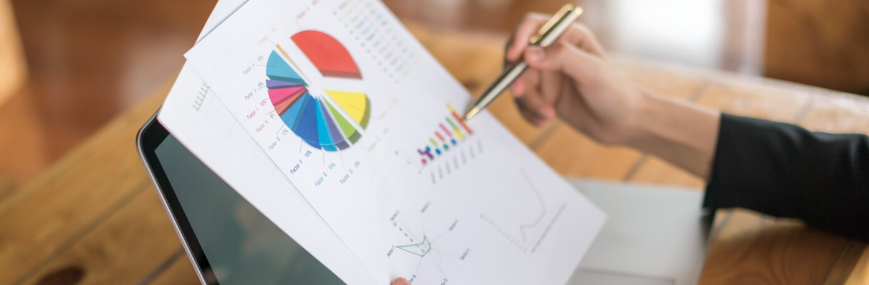
This is usually the first setting you’ll adjust. It’s best to set the orientation before you start designing extensively. Changing the orientation later may require you to reformat images, text boxes, and tables. In most applications, its location is the same.
- Microsoft Word/Google Docs: Locate the “Layout” or “Page Setup” tab/menu and select “Orientation.”
- PowerPoint, Google Slides: The default orientation is usually landscape. To change the orientation, go to the “Design” or “Slide Size” settings.
- Photoshop, Canva: When creating a new file, you can set the width and height. Increase the first number for landscape and the second number for portrait.
- Printer Dialog Box: After pressing Ctrl+P (or Cmd+P), look for the “Properties,” “Preferences,” or “Page Setup” button. The basic “Portrait/Landscape” option is usually there.
“Flip on Long Edge vs Short Edge” for Double-Sided Prints
When printing double-sided, after selecting landscape or portrait mode, you also need to tell the printer how to flip the pages so that both sides face up. This is where “long edge” and “short edge” come in. The blog post Long Edge vs Short Edge Printing: What’s the Difference provides more details.
Flip on Long Edge: Pages flip like in a regular book. The page is bound or flipped along the long edge of the paper. This is the correct choice for most portrait documents (such as reports, articles, or letters) because the text on both sides is right-side up when you flip the page from left to right.
Flip on Short Edge: Pages flip like in a calendar or notebook. The page is bound or flipped along the short edge of the paper. This is essential for most landscape documents (such as presentations or spreadsheets) and top-bound portrait documents (such as legal paper).
It’s worth noting that if you use “Flip on long edge” to print a landscape document double-sided, the back side will be upside down. “Flip on short edge” will rotate it correctly.
How to Select Duplex Printing Settings?
Press Ctrl+P or Cmd+P to enter the print dialog box, select “Print on Both Sides” (or “Duplex Printing”), and a drop-down menu will usually appear.
First, set the page orientation: Is your document portrait or landscape?
Then select the flip settings: Portrait document → Almost always select “Flip on long side”. Landscape document → Almost always select “Flip on short side”.
Final Thoughts
Choosing between portrait and landscape layouts isn’t just a matter of aesthetic preference; it’s about enhancing readability, visual appeal, and professionalism. Generally, portrait layouts are more formal and sequential, while landscape layouts offer better visual impact and stronger contrast. If in doubt, consider how your readers will view the page and which layout best showcases your content. With these guidelines and a quick print preview, you can confidently experiment and achieve perfect print results every time.


Comments
Post a Comment