Does Scanning Use Ink?
- Get link
- X
- Other Apps
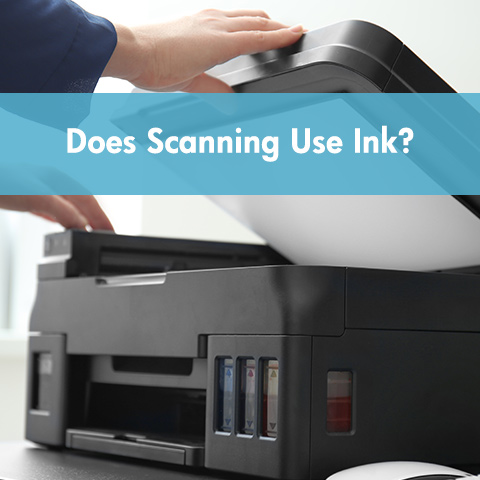
Does scanning require ink? In short, the answer is no; the scanning process does not actually use ink. The optical scanner in an all-in-one printer works similarly to a small digital camera, capturing light to create a digital file. However, you might encounter a situation where you can’t scan documents due to an “Ink Low” message. This creates a contradiction between the technical principle and the user experience. In this blog post, we will explain the reasons why your scanning function might be locked.
Table of Contents
- I. Your Scanner Is an Ink-Free Device
- II. Why Your Printer Demands Ink to Scan?
- III. How to Scan Documents When Your Printer Has No Ink?
- IV. Frequently Asked Questions About Whether Scanning Uses Ink
I. Your Scanner Is an Ink-Free Device
First, let’s differentiate between the two independent components inside your all-in-one device.
1. How the Scanner Works?
The scanning component consists of a light source (usually a moving LED or cold cathode lamp) and a sensor array called a CCD or CIS.
As this component moves across the document, it captures reflected light and converts it into digital pixels. The entire process is purely optical and electronic.
No ink, toner, or any other consumable is involved in the act of capturing the image. Its function is exactly the same as taking a picture with a smartphone camera.
2. How This Differs from Printing?
Printing is a chemical and mechanical process.
Inkjet printers spray tiny droplets of ink onto the paper, while laser printers use heat to melt powdered toner. These processes require a constant supply of physical consumables.
Although integrated, the scanner and printer are independent systems. One is responsible for acquiring information; the other is responsible for outputting information.
Physically, the scanner does not consume ink. If you could run the scanner’s motor and sensor array independently, it could work indefinitely without any ink.

II. Why Your Printer Demands Ink to Scan?
Why do your HP, Canon, or Brother printers refuse to scan when the ink is low or empty? This lockout isn’t due to technical necessity, but rather a series of software design and business decisions.
1. Integrated Driver and Firmware Design
Manufacturers typically create a unified software suite for their devices. When you initiate the “Scan” function, this software often performs a full-system status check before granting access to any functions. If the firmware detects an “ink empty” status, it may throw an error, thus halting all operations.
This design assumes that if one core function (printing) is disabled, the entire device should cease to function.
2. “Health Check” and Maintenance Justification
Some manufacturers claim that functional ink cartridges are necessary to ensure optimal scanning quality, particularly for color calibration. More commonly, the printer performs automatic print head cleaning during power cycles. A single automatic cleaning cycle can consume up to 5% of the ink in a cartridge. See the blog post How to Clean Brother Printer Heads for more information.
If you only want to scan, this ink is being consumed without your knowledge or request for this function.
3. Business Model: Selling Consumables
This is the most significant factor. The well-known “razor and blades” model is at play here: printers are often sold at or below cost, with the real profit coming from the continuous sale of proprietary ink cartridges.
Disabling core functions like scanning when ink is low is a powerful strategy to force consumers to buy cartridges immediately, even though the scanner doesn’t use ink.
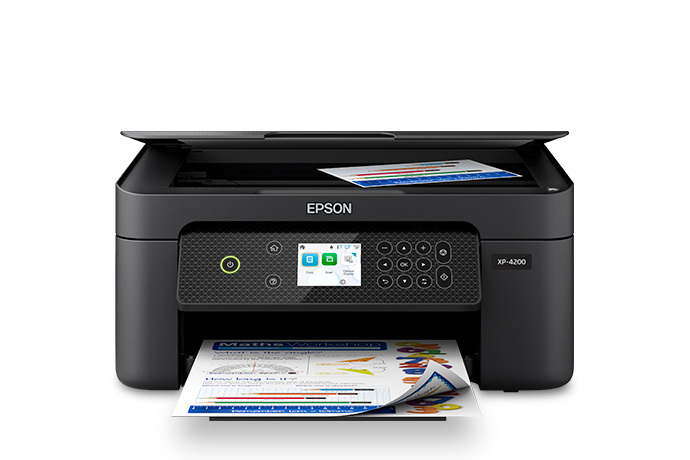
The most compelling evidence is a statement from Epson. Epson states in its support documentation (Article ID: WA00934) that on many of its all-in-one models, you can still use the scanner even if the ink cartridges are empty, as long as the cartridges are installed in the printer. If one major manufacturer can design its firmware to allow inkless scanning, then all manufacturers can.
III. How to Scan Documents When Your Printer Has No Ink?
Here are some effective scanning methods that may be helpful to you.
Method 1: Use Your Operating System’s Built-In Tool
Often, the ink check function is present in the manufacturer’s software. Try using generic system-level tools.
- On Windows: Search for and open “Windows Fax and Scan.” This application can usually communicate directly with your printer scanner without performing an ink check.
- On Mac: Open “Image Capture” from the “Applications” folder. Select your printer from the device list and try using its scanning interface.

Method 2: Use a Smartphone Scanning App
For most document scanning needs, your smartphone is a superior, ink-free tool. Apps like Adobe Scan (free) or Microsoft Lens (free) allow you to photograph documents, automatically crop edges, correct perspective, and improve readability. You can save directly as a PDF or image file.

Method 3: Check for a Hardware Button
Some all-in-one printers have a physical button on the control panel labeled “Scan to PDF” or “Scan to Email.” In some cases, pressing this button can save the scan directly to a USB drive or network folder without using PC software drivers that perform ink checks.

Method 4: Purchase a Dedicated Scanner
If you frequently scan books, photos, or legal documents, a dedicated device is the best long-term solution.
- For single sheets: A fast automatic document feeder (ADF) scanner can save time.
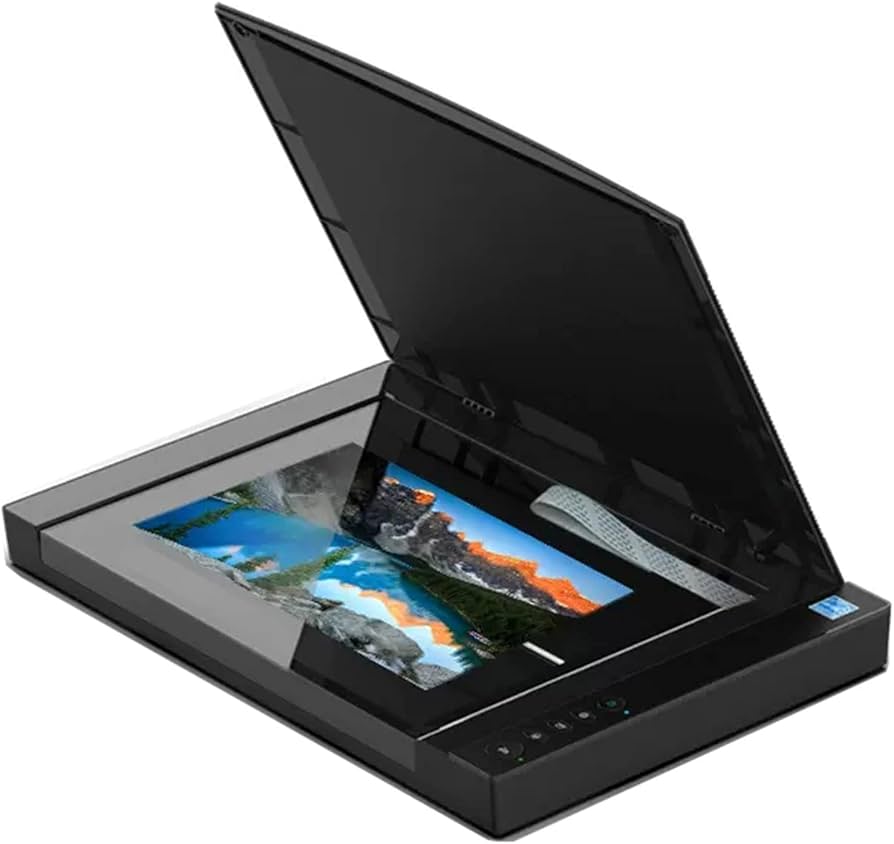
- For books, magazines, or fragile items: Consider a flatbed scanner. Unlike most printer scanners, flatbed scanners don’t have deep grooves around the glass plate, so you can lay the book spine flat on the glass for high-quality, shadow-free images. Models from brands like Fujitsu or Epson are commonly used in business offices.
IV. Frequently Asked Questions About Whether Scanning Uses Ink
1. Does scanning use toner in a laser printer?
Scanning is an optical process that does not use toner. However, many laser all-in-one printers also enforce a similar firmware lockout when they detect that the toner is depleted, thus applying the same commercial logic and limitations.
2. How can I use my printer without ink for any function?
Aside from the scanning function, other features are very limited. Network connectivity and control panel settings may sometimes be accessible, but core functions such as printing or copying (including scanning) will be disabled.
If you don’t want to buy ink cartridges, consider choosing a brand like Epson that has a clear policy supporting inkless printing, or transfer your scanning tasks to your mobile phone.
Explore More: Blogs You’ll Want to Read Next
- How Do I Scan with Brother Printer?
- How Do I Scan on a Canon Printer?
- How to Scan on Canon PIXMA?
- How to Scan with HP DeskJet 3755?
- Can You Heat Press on Polyester?
- EcoTank vs Laser Printer: Which One Should I Choose?
V. Conclusion
Regarding the question, “Does scanning require ink?”, technically, no. However, the scanner itself is just a device, and this device is designed to make you buy ink. Therefore, it’s often required with many brands of printers. Consider using built-in system tools, utilizing your phone’s scanning capabilities, or making a wise choice next time you buy a printer by choosing a brand that doesn’t hold basic functions hostage.
- Get link
- X
- Other Apps


Comments
Post a Comment