How to Tell If an Ink Cartridge Is Empty?
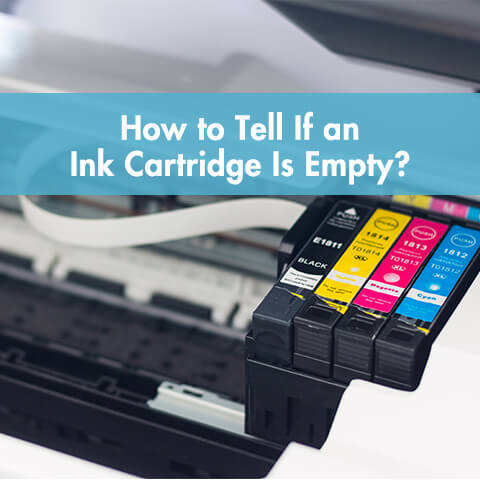
Sometimes, the most straightforward method is the best. While many modern cartridges are designed to be opaque, a significant number still allow for a simple visual check.
1. Check Cartridges You Can See Through
If your printer uses cartridges with a clear plastic casing, you are in luck. Hold the cartridge up to a bright light. You should be able to see the sponge inside that holds the ink. A fully saturated sponge will appear dark (the color of the ink). As the ink is used, the sponge will become lighter or even white. On average, a standard ink cartridge holds between 10 and 15 milliliters of liquid ink. By looking, you can often guess if you have roughly 20% or more of that volume remaining.
2. Feel the Weight Difference
This is a trick used by savvy office managers. If you have a new, unopened cartridge of the same model, pick it up. Feel its weight. Then, pick up the cartridge you suspect is empty. The difference in weight is often surprisingly noticeable. A full cartridge is dense with liquid, while an empty one is mostly just plastic and a dry sponge.
Do not shake the ink cartridge vigorously. Gently tilting the cartridge can help you see the sponge, but violent shaking can cause air bubbles to enter the printhead, leading to decreased print quality or even damage to internal components.

II. Use Your Computer to Check Ink Levels
Your computer and printer are constantly communicating. You just need to know where to look to interpret that data.
1. Find the Digital Ink Gauge
Nearly every modern printer driver includes a utility to check ink levels.
- On Windows: Go to “Devices and Printers” in your Control Panel. Right-click on your printer icon and select “Printing Preferences” or “Printer Properties.” Look for a tab labeled “Services,” “Maintenance,” or the brand name of your printer (e.g., “HP Toolbox,” “Canon Status Monitor”).
- On Mac: Open “System Settings,” go to “Printers & Scanners,” select your printer, and click “Options & Supplies.” A supply levels tab is often available here.
2. Understand What the Warnings Really Mean
These digital indicators typically display ink levels graphically, such as progress bars or ink droplet icons.
It’s important to note that these values are estimates based on the number of pages printed and the printer’s internal algorithms, not precise ink levels measured by physical sensors.
Manufacturers usually set a “low ink” warning to trigger when the printer calculates that the cartridge capacity is 10-15%. This is a conservative buffer to prevent the ink from running out during printing, but it could still lead you to discard a cartridge that could still print more than 50 pages.
III. Print a Test Page to See the Problem
If you want to move past software estimates and see the reality on paper, printing a test page is your best bet. It provides undeniable physical proof of your printer’s health.
1. How to Print a Test Page
This is usually found in the same “Maintenance” or “Services” tab within your printer’s driver software. Look for options like “Print Test Page,” “Nozzle Check,” or “Print Quality Diagnostic.” See the blog post How Do I Print a Test Page on HP Printer for more details.
2. What to Look for on the Page
The test page will typically print a series of colored blocks and lines. This is what you need to look for:
- Missing Sections or Gaps: If a color block (like cyan or yellow) has horizontal white lines running through it, or if sections of the block are completely missing, it is a strong indicator that the respective cartridge is out of that specific color.
- Overall Faded Print: If all colors print, but the entire page looks lighter than usual, you might be low on ink across the board, but not completely empty. A standard ink cartridge is rated to print between 150 and 300 pages at 5% page coverage (which is about a one-page business letter). If you print a full-page, borderless photo, you could exhaust a cartridge in 15-20 prints.
- Streaks and Misalignment: If the test page prints but has jagged lines or color streaks, this often points to a clogged print head, not an empty cartridge. Running your printer’s built-in cleaning cycle can often resolve this.
IV. Try Mobile Apps for a Quick Check
In our connected world, your smartphone can be a powerful tool for monitoring your printer’s status. Most major brands now offer mobile applications.
1. Use Your Printer Brand’s App
Applications like HP Smart, Epson iPrint, and Canon PRINT are designed to give you a dashboard view of your printer. Once your printer is connected to your Wi-Fi network, these apps can show you estimated ink levels, often with more visual detail than the computer driver. They can also send push notifications directly to your phone when levels are critically low, which is helpful for busy home offices. For more information, see the blog posts How to Change Ink on Canon PIXMA and How to Check Ink Levels on Epson Printer.
2. Consider Third-Party Software Options
For those managing multiple printers or just wanting more data, third-party software options exist. Programs like PrinterShare or TurboPrint (for Mac) often provide detailed ink level readouts and can sometimes even reset warning counters. However, be cautious: because these tools aren’t made by the printer manufacturer, they are entirely reliant on the data the printer chip provides, making them no more accurate than the built-in tools, just sometimes more convenient.
V. Run a Printer Diagnostic Page
We touched on test pages, but the “Diagnostic Page” or “Nozzle Check Pattern” deserves its own spotlight. This is the most detailed report your printer can generate.
1. What a Diagnostic Page Tells You
A nozzle check pattern is different from a simple Windows test page. It prints a specific series of fine lines and color grids designed to test every single ink nozzle in the print head. A typical print head can have hundreds of nozzles (for example, many HP thermal inkjet print heads have 300 or more nozzles per color).
2. How to Read the Results
- Clean and Solid: If all the lines and grids are solid and unbroken, your cartridges are functioning perfectly and have enough ink to push through all the nozzles.
- Broken or Missing Lines: If you see gaps in the lines of a specific color, it means that particular nozzle is not firing. Here is the critical distinction:
- If the gaps are random and intermittent, it is usually a clog. Running the printer’s cleaning cycle 1-3 times often fixes this.
- If the gaps are consistent and form a complete absence of a color, or if the entire block for a color is missing, the cartridge is likely genuinely empty or has a fatal hardware failure.
The diagnostic page is your truth-teller. It separates a simple clog from a truly empty cartridge. For instance, if your yellow is missing completely on the page, and a cleaning cycle doesn’t bring it back, your yellow cartridge has roughly less than 1.5ml of usable ink left, which is functionally empty. See the blog posts How to Clean Brother Printer Heads and How to Run a Nozzle Check on Epson Printer for more information.
VI. Know When to Finally Replace Your Cartridge
After all your detective work, you will eventually need to make the call. Here is how to know when it is truly time to replace that cartridge.
1. Clear Signs It Is Time for a New One
- Blank Pages: You print a document and the page comes out completely blank. This is the ultimate sign your cartridge is empty or the print head has failed.
- Persistent Software Alerts: The printer software repeatedly asks you to replace the cartridge, even after cleaning cycles.
- Expired Cartridge: Some cartridges have a printed expiration date. Ink can dry up or degrade over time, usually after about two years from the manufacturing date.
The blogs How to Replace Ink in Canon Printer, How to Install Ink Cartridge in Epson Printer, and How to Put Ink in a Printer HP provide more details.
It is easy to fall into a few common traps when dealing with printer issues. Many people replace cartridges too soon because they trust the low ink warning blindly, not realizing it is just an estimate that can leave you with 50+ pages of usable ink still in the tank.
Others find online tutorials about “resetting” the cartridge chip, which tricks the printer into thinking it has more ink but does absolutely nothing to add physical liquid, potentially leading to a dry cartridge damaging your printer.
And perhaps the most frequent mistake is confusing a clog for an empty cartridge; running a cleaning cycle first is always worth a try since it costs nothing and can save you from an unnecessary trip to the store.
VII. Final Thoughts
Learning how to tell if an ink cartridge is empty is more than just glancing at a pop-up warning on your screen. It is about being a discerning user. By combining visual checks, understanding the limitations of software gauges, and mastering the art of reading a test or diagnostic page, you put the power back in your hands. Don’t let a premature “Low Ink” warning bully you into an unnecessary purchase. Check the facts, inspect the evidence, and print with confidence, knowing you are using every last drop of the expensive ink you already paid for.


Comments
Post a Comment