Brother Printer Drum End Soon: What It Means and How to Fix It?
If you own a Brother printer and suddenly see a "Drum End Soon" warning on the control panel, don't panic. This isn't an emergency, but it's an important reminder that your printer’s drum unit is approaching the end of its usable life. In this blog, we'll explain what "Drum End Soon" means on a Brother printer, along with other relevant information such as how to reset the drum counter.
I. What Does "Drum End Soon" Mean on a Brother Printer?
As we described in our blog What Is Printer Drum, your Brother printer relies on two separate consumables to produce a printed page: toner and drum unit. Toner is the fine powder that forms text and images, while the drum unit is a light‑sensitive cylinder that electrically attracts toner and transfers it onto paper.
When you see the message "Drum End Soon", it means that the drum unit has reached approximately 80% to 85% of its rated printing life.
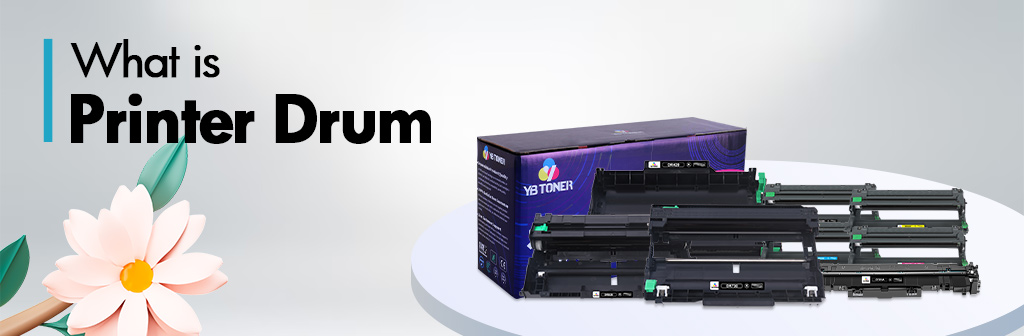
This is not a malfunction error, but rather a preventative notification. Depending on the specific model, the rated print lifespan of most Brother drum units ranges from 12,000 to 45,000 pages. Common Brother drum unit models include the DR730 (12,000 pages), DR420 (12,000 pages), DR210CL (15,000 pages), DR221CL (15,000 pages), DR229CL (20,000 pages), DR620 (25,000 pages), DR431CL (30,000 pages), DR820 (30,000 pages), DR920 (45,000 pages), and others.
The warning typically appears when the drum counter shows 15‑20% life remaining. At this point, you can still print hundreds or even more than a thousand pages. But the printer is telling you: order a new drum soon.
Important: “Drum End Soon” is not the same as “Toner Low.” You can replace the toner cartridge multiple times (usually 3‑4 times) before the drum needs changing.
II. Why Does the Printer Drum Wear Out?
The Brother drum unit wears out for three main reasons.
1. Photosensitive Coating Degradation
Your printer drum is coated with an organic photoconductive (OPC) layer. Each time the printer runs a print cycle, a laser beam discharges specific areas of that coating.
After thousands of cycles, this coating gradually thins and its uniformity deteriorates. Once it loses more than ~20% of its original thickness, charge retention becomes uneven, leading to light or dark streaks.
2. Mechanical Fatigue
With every rotation, the drum undergoes friction against the cleaning blade (which removes excess toner) and the primary charge roller. These contact points create micro‑abrasions.
After 12,000 pages, a typical drum will have rotated over 3 million times in a small office printer. Over time, minor scratches begin to appear on the drum's surface; these scratches leave recurring marks on every printed document.
3. Cleaning Blade Wear
A cleaning blade is a soft polyurethane edge that scrapes residual toner off the drum. As the blade wears, tiny toner particles can get trapped between the blade and the drum, causing thin vertical lines or a grey “background haze” on prints.
III. What Happens If You Ignore the “Drum End Soon” Warning?
You can ignore this warning for now, but if the print quality shows the following abnormalities, you will need to replace it.
- Vertical Black Lines: Repeating every 3.7 inches (94mm). These are scratches on the drum surface.
- Grey Background “Clouds”: The drum no longer discharges cleanly, so toner lightly sticks to blank areas.
- Uneven Density: The print density is lighter on one side of the page than on the other (caused by uneven wear of the drum unit's coating).
- Black Spots: Caused by tiny pits in the drum coating.
- “Replace Drum” Error: On most Brother models, when the counter reaches 0% (or the printer detects a critical failure), it will stop printing entirely and show an error. You cannot override this without replacing the drum.
How Many Extra Pages Can You Actually Get?
Based on user reports and internal tests from printer service centers:
| Drum Model | Rated Life | Typical extra pages before error | Extra % |
|---|---|---|---|
| DR‑730 | 12,000 | 800‑1,200 | 7‑10% |
| DR‑820 | 30,000 | 2,000‑3,000 | 7‑10% |
| DR-920 | 45,000 | 3,000-4,500 | 7‑10% |
Once you exceed ~10% over the rated life, quality drops quickly. To avoid downtime, we recommend ordering a drum replacement as soon as the "Drum End Soon" message first appears, and replacing it when print quality declines or your printer stops working.
IV. How to Check Your Brother Drum’s Exact Remaining Life?
Most Brother printers manufactured after 2015 feature a built-in menu that displays drum life as a percentage. Please follow the steps below; the specific procedure may vary slightly depending on the model series.
1. For HL‑L2300D / L2320D / L2350DW, MFC‑L2700DW / L2750DW, DCP‑L2540DW
- Press "Settings" (or "Menu") on the control panel.
- Use the arrow keys to scroll to "Machine Info" (or "Printer Info").
- Select "Parts Life".
- Choose "Drum". The display will show something like: “Drum Life: 18%” or “Drum: 2,200 pages remaining” (some models show pages left).
2. Print a Settings Report
If your printer does not have a graphical display, you can print a user settings report:
- Press "Menu" or "Settings".
- Navigate to "Print Reports" (usually under "Machine Info").
- Select "User Settings" or "Printer Settings".
- Press "Go" or "OK" to print. On the printed page, look for a line like “Drum Life Remaining: 85%” or “Drum Counter: 10,200 pages”.
3. For Older Brother Models (No LCD)
Some basic monochrome lasers (e.g., HL‑2170W, HL‑2270DW) do not show drum percentage. Instead, your Brother printer will flash a “Drum” LED or show a “Replace Drum” status in the Brother Status Monitor software on your PC. In that case, assume the drum has reached its end when print quality degrades.
V. Should You Reset the Drum Counter Without Replacing the Drum?
We do not recommend doing this. Resetting the drum counter without installing a new drum unit will only hide the warning. The printer will no longer track wear, and you will have no idea when the drum truly fails.
However, if you have already installed a new drum, you must reset the counter. Otherwise your Brother device still thinks the old drum is installed and will continue showing the warning.
1. How to Reset the Drum Counter?
This method applies to most Brother laser models manufactured in 2010 and later.
- Make sure the printer is turned on and idle (no errors blinking except maybe “Drum End Soon”).
- Open the front cover (the cover that gives access to the toner and drum).
- Press and hold the "OK" button (or "Go" button, depending on model) for about 5‑10 seconds. On some models, you will see “Replace Drum?” or “Reset Drum” on the screen.
- If needed, press "OK" again to confirm.
- Close the front cover. The drum counter should now show 100% (or “0 pages used”).
Please note that the reset procedures vary slightly depending on the specific model. For example, for the HL-2270DW and HL-2170W models, simply open the front cover, press the "Go" button 4 times, and then close the front cover. For the MFC-7360N and MFC-7460DN models, navigate through the menu options in the following order: "Menu" → "Machine Info" → "Part Life" → "Drum" → "Reset."
If the methods described above do not work, please consult your user manual. The blog post How to Reset Drum on Brother MFC-L2710DW & HL-L2350DW Series Printers also provides some detailed information.
VI. Where to Buy a Replacement Drum Unit for Your Brother Printer?
Typically, you have two options: choose either OEM original products or third-party compatible products.
1. Genuine (OEM) Brother Drums
Buy directly from Brother, Amazon, Staples, Office Depot, Best Buy, etc. OEM drums are guaranteed to work perfectly and last the full rated page life.
2. Compatible / Remanufactured Drums
Additionally, you can purchase compatible or remanufactured drum units supplied by third-party vendors. Nowadays, third-party manufacturers have made significant strides in R&D; brands such as YB Toner, for instance, utilize high‑grade OPC drums and reinforced cleaning blades. Today’s compatible printer drum units can match the lifespan of OEM products while costing 50‑60% less.
A friendly reminder: Please do not confuse the "Drum Reset" with the "Toner Reset." When you later replace the toner cartridge, you may need a separate toner reset. For many Brother printers, you can do this simply by pressing the "Go" button seven times consecutively while the cover is open, or by selecting "Toner Reset" via the menu options. This procedure has no effect whatsoever on the drum counter.

VII. The Final Word
Receiving a Brother Drum End Soon notification is not an emergency. You may certainly continue printing your documents; however, we recommend ordering a replacement drum unit at this time. When printing malfunctions, simply replace the drum unit and reset the counter, and your Brother printer will run like new again.
Don't Miss These: More Blogs Worth Your Time


Comments
Post a Comment